







How to open a Demo Account on TradingView - Guide
TradingView is one of the world’s most advanced platforms for charting, market analysis, and social trading. The platform is widely recognised for its modern interface, extensive indicator library, and smooth performance across web, desktop, and mobile. Traders can analyse a variety of global markets and even place trades directly through supported brokers.
To begin trading on TradingView, many users start with a demo account. A TradingView demo allows you to practise trading in real market conditions without risking any money. It also helps traders familiarise themselves with the trading platform before trading the live market.
So, how do you open a demo trading account on TradingView? In this step-by-step guide, we will break down the entire process, from choosing a compatible broker to connecting your demo account to the TradingView interface.
Understanding How TradingView Demo Accounts Work
Before we begin the process, it’s important to understand how TradingView demo accounts work. There are two main ways to obtain a TradingView demo account. First, you can use TradingView's built-in paper trading feature. This tool allows you to place simulated trades in real market conditions without risking actual funds. To get started, open any chart, navigate to the Trading Panel, and choose Paper Trading by TradingView from the list of available options. The system will provide a demo account with a default virtual balance of $100,000, which you can reset whenever needed.
The second way to use a free demo account on TradingView is through a broker that integrates with the platform. Many TradingView-supported brokers offer demo accounts that can be connected directly to TradingView for practice trading. Opening a TradingView demo account with a TradingView-supported broker requires more steps. This is what we are going to focus on in this guide. Let’s see how to go about it.
Steps to Open a Demo Account on TradingView
Step 1: Choose a Reliable Broker that Supports TradingView
The first and most critical step in opening a demo TradingView account is selecting a trustworthy broker that supports the platform. Not all brokers integrate with TradingView, so you’ll need to focus on those that do. Additionally, not all TradingView-supported brokers offer the same demo account experience. As such, your demo experience will depend heavily on the broker you choose. When choosing a broker, consider the following key factors:
- Regulation and Security - Even for a demo, starting with a reputable, regulated broker sets good habits. Prioritise brokers that are regulated by reputable financial authorities such as the ASIC, the CySEC, and the FCA, among others. This provides a layer of security and ensures the broker adheres to strict standards.
- Trading Costs - Even in a demo environment, it's beneficial to know the real costs. Look for a broker with competitive spreads and commissions that align with your eventual live trading budget.
- Tradable Instruments - Verify that the broker offers the specific assets you wish to practice trading, such as forex pairs, commodities, indices, or cryptocurrencies. The more assets available, the better for simulating a diversified portfolio.
Beyond these core factors, also consider the quality of customer support and the ease of connecting their account to TradingView. Several reputable brokers support seamless TradingView integration, including Pepperstone, Tickmill, and Eightcap, among others.
For this guide, we will use Pepperstone as our example. Pepperstone is a globally recognised broker known for its excellent TradingView integration and competitive conditions. The process is largely similar across other TradingView-compatible brokers.
Step 2: Registration and Application
To get started with Pepperstone, you'll need to fill out their online application for a demo account. Start by opening your favourite web browser and going to the official Pepperstone website www.pepperstone.com , and click on Join Now.
74.1% of retail CFD accounts lose money
You will be redirected to the registration form where you’ll need to provide basic personal details, including your full name, email address, phone number, and region. Ensure all information is accurate, as it may be used for account setup.
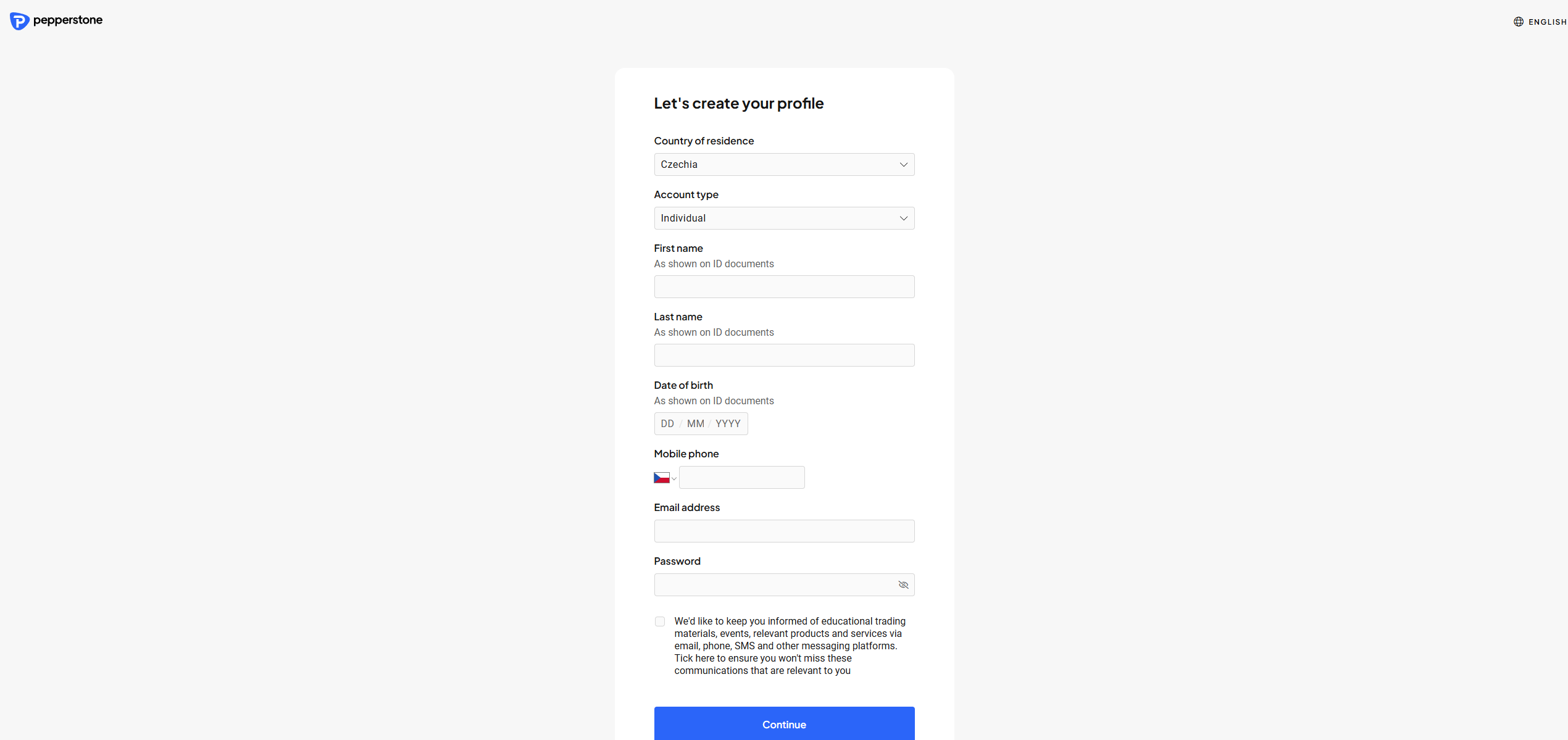
Once you submit your personal details, Pepperstone will redirect you to a page where you can choose between opening a live trading account or a demo account. To continue with the demo setup, simply select the Start trading with demo option.
Step 3: Set Up Your Demo Account
After choosing to proceed with a demo account, you’ll arrive at the setup page where you can configure the account to suit your trading style. This is where you select your preferred trading platform. Pepperstone supports MetaTrader 4, MetaTrader 5, cTrader, its proprietary Pepperstone Trading Platform, and TradingView. Since the focus of this guide is TradingView, you would select TradingView as your trading platform.
You will then choose your account type, assign a nickname to the account, select your base currency, and decide how much virtual capital you want to start with. Pepperstone also has account limits worth noting. Traders with an active live account can create up to 10 demo accounts, while those without a live account may create up to 5. Positively, TradingView demo accounts do not expire at Pepperstone, provided a trader keeps them active by regularly logging into them.

Step 4: Connect Your Pepperstone Demo Account to TradingView
Now it’s time to link your Pepperstone demo account to the TradingView platform. Start by logging into your TradingView account either on the Web or through the desktop or mobile applications. If you do not already have a TradingView account, you can easily create one by visiting the TradingView website and selecting the Get Started option.
Once you are logged in, open any chart, such as the EUR/USD or gold (XAU/USD) chart. At the bottom of the chart window, you find and click on the Trading Panel tab. In the Trading Panel section, scroll through the list of available brokers until you find Pepperstone. Select it and click the Connect button.
A login window will appear, prompting you to enter the demo username and password that you used when you created your Pepperstone account. Once you enter your credentials, TradingView will authenticate the account and establish the connection.
Step 5: Start Trading on Pepperstone With Virtual Funds
After completing the setup, your demo account will be ready to use. Your account will appear in the trading panel, displaying your virtual balance, account type, and available instruments. You can now trade directly from the chart using Pepperstone pricing inside the TradingView interface.
Pepperstone Current TradingView Promo Offer
Pepperstone is currently running a promotion for a complimentary TradingView subscription. Both new and existing account holders qualify, with the subscription tier (Essential or Pro) depending on your location. Existing clients need to contact their account manager to activate the offer, as it isn't applied automatically. For complete details, visit the dedicated offer page.
74.1% of retail CFD accounts lose money

What Does Pepperstone Offer on TradingView?
Pepperstone is one of the most popular TradingView brokers because of its competitive pricing, deep market collection, and quality execution. The broker gives traders access to over 1,400 instruments, which include CFDs on forex, indices, commodities, cryptocurrencies, currency indices, stocks, and ETFs. This allows traders to diversify their portfolios as they see fit.

When it comes to trading costs, Pepperstone offers two distinct accounts with different pricing structures. The Standard account offers spreads from as low as 1.0 pips with no commission charged. In comparison, the Razor account features raw spreads from 0.0 pips plus a commission that depends on the trading platform used. The commission when using TradingView is $3.5 per side per lot. For non-USD accounts, the commission is converted to the account base currency at the current spot exchange rate.
Further, Pepperstone is a well-regulated broker under the supervision of the FCA in the UK, the CySEC in Cyprus, the ASIC in Australia, the BaFin in Germany, the CMA in Kenya, and the DFSA in Dubai, among others.
Why Use a TradingView Demo Account?
TradingView has gained a massive following due to its powerful and user-friendly environment. Below are some of its key features:
- Supercharts - TradingView features advanced charting with multiple time frames, candlestick patterns recognition, Heikin Ashi, Renko, and customisable themes for in-depth analysis.
- Extensive Indicators and Tools - Investors have access to over 400 built-in indicators, 100,000+ community-created ones, 110+ smart drawing tools, and volume profile indicators for precise technical analysis.
- Alerts and Notifications - TradingView allows people to set up to 1,000 price and technical alerts, plus watchlist alerts, to stay on top of market movements.
- Social Community - The platform has a 100-million-strong network of traders sharing ideas, trading insights, video streams, and in chat rooms to foster collaboration among traders.
- Screeners and Heatmaps - TradingView features powerful market screeners and heatmaps to spot opportunities across stocks, forex, and more.
With a TradingView demo account (paper trading account), traders can test out these and other features before using them in the live market.
What Other Brokers Support TradingView?
While Pepperstone is one of the most popular choices for TradingView, several other brokers also support the platform. These include:
Tickmill
Tickmill is a well-established global broker offering TradingView integration alongside MetaTrader 4, MetaTrader 5, and its own Tickmill Trader. The broker gives traders access to CFDs on forex, stocks, indices, bonds, commodities, metals, and cryptocurrencies.

There are two trading accounts available to use. The Classic account features a spread from as low as 1.0 pips with no commission charged. On the other hand, the Raw account has raw spreads from as low as 0.0 pips plus a commission depending on the platform. The commission when using TradingView is $3.5 per side per lot.
In terms of regulation, Tickmill operates under the supervision of various well-known organisations. These include the FCA, the CySEC, the DFSA, and the FSCA in South Africa, among others.
72-73% of retail investor accounts lose money when trading CFDs with this provider.
IC Markets
IC Markets is another broker that supports TradingView, where traders can open a demo account. With this broker, investors can trade over 2,200 instruments across various asset classes. In particular, the trader offers investors access to CFDs on forex, indices, cryptocurrencies, commodities, stocks, and futures.
The broker offers three different accounts, including the Standard, Starter, and Raw Spread accounts. However, TradingView is only available on the Raw Spread account. This account features spreads from as low as 0.0 pips plus a commission of $3 per side per lot.
Finally, IC Markets is regulated by a variety of financial authorities around the world. These include the ASIC, the CySEC, the FSCA, the SCB in the Bahamas, and the FSA in Seychelles.
Eightcap
Eightcap is a global broker that supports TradingView, alongside MT4 and MT5. The broker gives investors access to a ton of tradable instruments, including CFDs on forex, indices, commodities, shares, and cryptocurrencies.
For trading costs, the broker has three different accounts. On the Standard and the TradingView accounts, the spreads start from 1.0 pips for major currency pairs, with no commission charged except on shares. In contrast, the Raw account has spreads from 0.0 pips plus a commission of $3.5 or 2.25 GBP or 2.75 EUR per side per lot.
Finally, Eightcap operates under the regulation of multiple organisations. The broker has authorisation and supervision from the FCA, the CySEC, the ASIC, and the SCB.
Closing Remarks
Opening a demo account on TradingView is a straightforward process. As outlined in this guide, you can either use TradingView’s built-in paper trading feature or open a demo through a supported broker like Pepperstone. Either way, the virtual environment gives traders the perfect opportunity to explore the platform, test strategies, and build confidence before transitioning to live trading.
Remember, a demo account is more than just practice. It’s your personal trading laboratory. Use it to backtest ideas, refine risk management, explore new markets, and build the confidence you need. Once you feel comfortable with the charts, tools, and execution process, transitioning to a live account becomes much easier. Most importantly, starting with a reputable, regulated broker from the very beginning sets the foundation for a disciplined and professional approach to trading.


Top-Tier Trusted Brokers
The table below contains links to 3rd party websites of our top partners from whom we receive compensation at no additional cost to you.